Apple security alert scam: How to spot it and remove it fast


Apple’s popularity makes it a prime target for scammers, and one of the most common tactics is the fake “Apple security alert.” Understanding how this scam works and how real Apple-sent notifications behave helps prevent accidental data exposure. This guide explains how to recognize fake warnings, remove them on iOS and macOS, and reduce the chances of running into them again.
What is the Apple security alert scam?
The Apple security alert scam is a type of tech support scam that uses fake warnings styled to look like Apple security messages. These alerts often claim that Apple Security has detected viruses, infected files, or suspicious activity, and they typically push the user to call a phone number, install software, or grant remote access. The goal is to create urgency so the victim hands over money or sensitive information.
Legitimate Apple alerts vs. fake scam warnings
Genuine Apple security alerts only show up in system settings or official Apple apps, including on iPhones, iPads, and Mac devices.
On iPhones and iPads, these fake Apple security warnings almost always appear inside Safari as pop-ups, full-screen pages, or redirects.
On macOS, the scam typically still appears in the browser, but it can also show up as a fake system-style window designed to mimic macOS dialogs.
Signs you’ve encountered a fake Apple security alert
Fake Apple security alerts follow recognizable patterns on both iOS and macOS devices. A simple rule is this: if the warning appears inside a webpage or a web pop-up, it isn’t from Apple. Other signs include:
Persistent and aggressive pop-ups
A common sign of a fake Apple alert is a pop-up that repeatedly reappears or attempts to prevent you from closing the browser tab. These alerts often reload themselves, display full-screen warnings, or trigger looping audio messages claiming that a virus has been detected. Scam pages behave this way because the goal is to keep the user engaged long enough to prompt them to call a number or install unsafe tools.
Requests for payment or personal information
Fake Apple alerts can demand you pay for immediate “virus removal” or purchase fake security software that promises to remove that virus. Others try to capture sensitive information such as Apple ID credentials or credit card details by claiming they need to “verify your account,” “cancel a suspicious charge,” or “restore access” to your device.
All these types of scams usually include alerts that link to a fake sign-in or payment page that imitates Apple’s design and asks for your Apple ID and full card information, leading to financial fraud. Apple directs users to update account or payment details only through official settings or its official domains.
Fake Apple support phone numbers
Scam pop-ups often list a phone number labeled as “Apple Support” or “Apple Security.” When you call, the person on the line pretends to be an Apple advisor and may ask you to share your Apple ID, verification code, or payment details. This can lead to account takeover or unauthorized charges if you follow their instructions.
Many of these operations use Voice over Internet Protocol (VoIP) services or overseas call centers while making the number appear local or toll-free, which can make the call look more legitimate at first glance.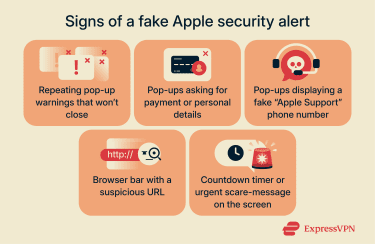
Redirection to unknown or unsafe websites
You may see fake Apple alerts on a scam page. This can happen when a deceptive or compromised ad opens a new tab, or when you click a link in a phishing email that leads to a fake site. These scam pages and the phishing emails that may lead you to them often copy Apple’s logos, fonts, and color. However, they’re not hosted on Apple domains such as apple.com or icloud.com. The address bar usually reveals extra words, numbers, or unusual extensions meant to fool quick scans of the URL.
Scare tactics
Most Apple security scam alerts rely on urgency to push you into acting quickly, without checking whether the warning is real. They may claim your Apple Account is locked, that your photos will be deleted, or that your data will be exposed unless you respond within a short time window. Scammers can add countdown timers, flashing banners, and repeated “critical” or “high-risk” labels to increase the sense of pressure and get you to act before thinking first.
How to remove the Apple security alert scam
Here’s how you can stop the fake Apple security pop-ups from reappearing and prevent any additional tracking or redirects.
Removing the scam on Mac
The exact steps depend on whether the pop-up came from a single malicious site or if additional software was installed. macOS includes built-in tools to manage extensions and configuration profiles, and most unwanted browser behavior can be reversed by adjusting these settings.
Uninstall suspicious browser extensions
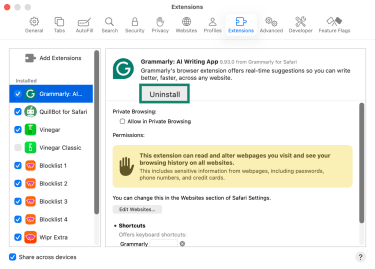
If fake Apple alerts follow you from site to site, or if pop-ups keep appearing even on pages that are normally safe, the source may be a malicious browser extension. These add-ons can redirect you to scam pages, change your search engine, and inject “security” warnings into everyday browsing. Removing unfamiliar or recently added extensions from your browser often stops these recurring pop-ups and redirects at the source. To check and uninstall an extension in Safari:
Safari
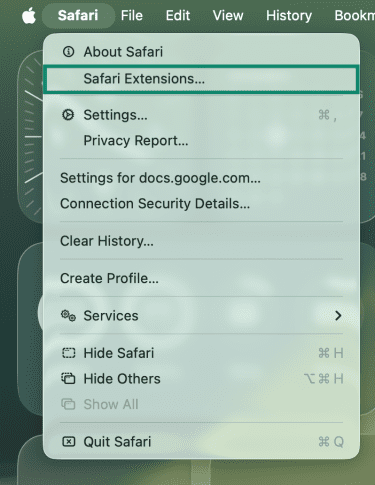
- Launch Safari, click Safari in the top-left corner (next to the Apple button), and select Safari Extensions.
- Select the Extensions tab.
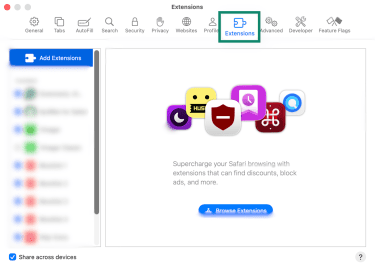
- On the left side, see if there are any extensions you don’t recognize. If you find one, select that extension and use the Uninstall button on the right.
Chrome
- Launch Chrome and click the Extensions button (it’s next to the address bar).
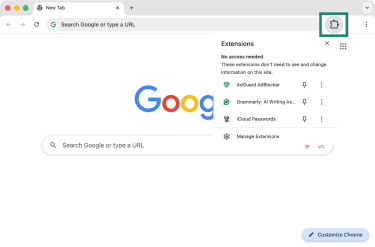
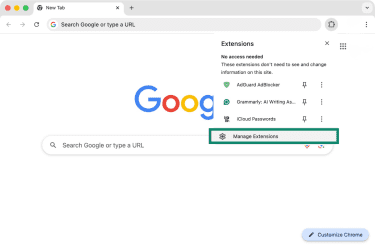
- Select Manage Extensions to see all your currently installed Chrome extensions.
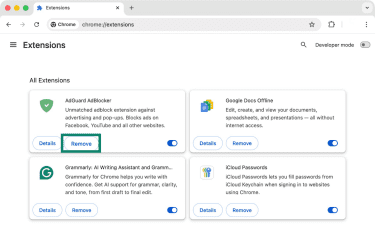
- Review the list and use the Remove button to uninstall unknown extensions.
Remove malicious configuration profiles
Some adware campaigns install configuration profiles on macOS to change browser settings, force redirects, or prevent users from switching search engines. These profiles don’t install themselves; they usually come from clicking fraudulent prompts on malicious websites. Here’s how you can review and remove configuration profiles:
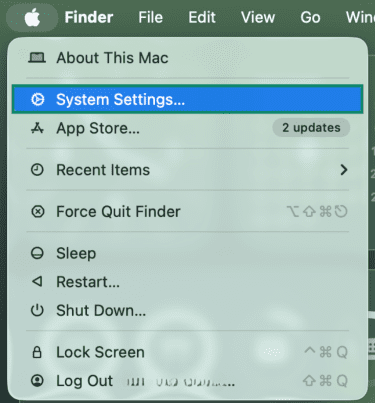
- Access the Apple menu in the top-left corner and click on System Settings.
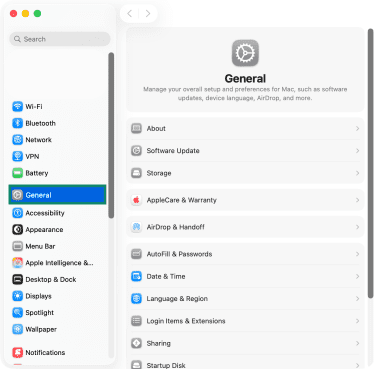
- On the left, pick General.
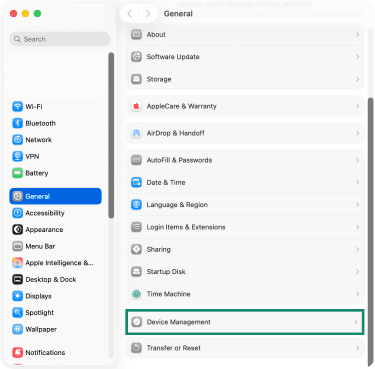
- Scroll down and select Device Management.
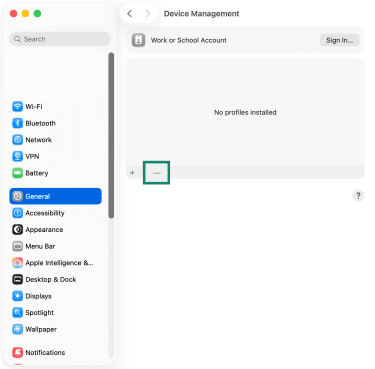
- If you see any unknown configuration profiles, select each of them and use the minus button to remove that specific profile.
Removing the scam on iPhone or iPad
Fake Apple security alerts most often show up after visiting a compromised site, tapping a misleading ad, or opening a redirect from inside an app. Clearing Safari data, removing suspicious apps, and restarting the device typically stop the pop-ups from reappearing.
Clear Safari history and website data
Scam pages often reload because their data is cached in Safari. Clearing history and website data removes cookies, redirects, and scripts that trigger repeated fake warnings. To clear Safari data on iOS/iPadOS, do the following:
- Open the Settings app, scroll all the way down, and tap on Apps.
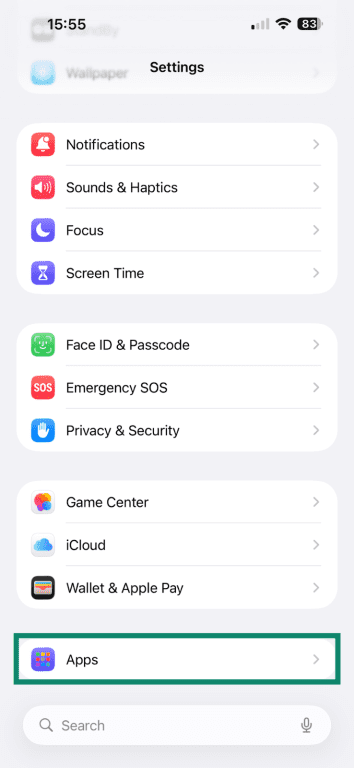
- Tap Safari to open the app’s settings.
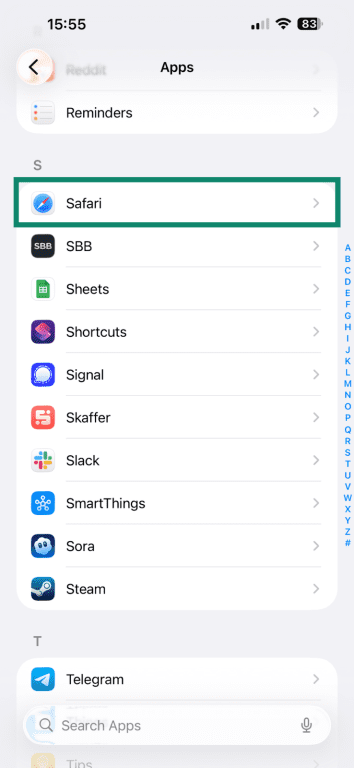
- Tap Clear History and Website Data.
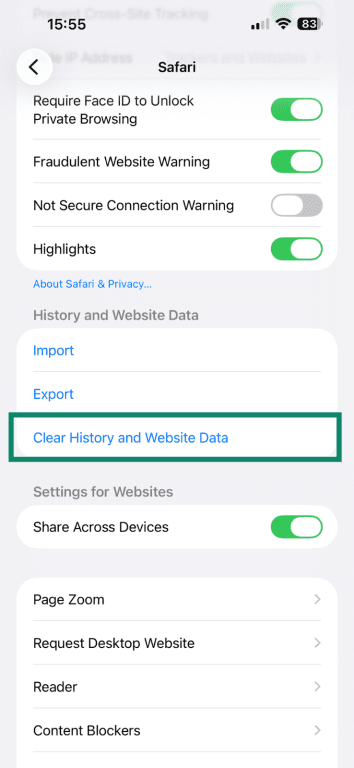
- Select All History and confirm your decision by tapping Clear History.
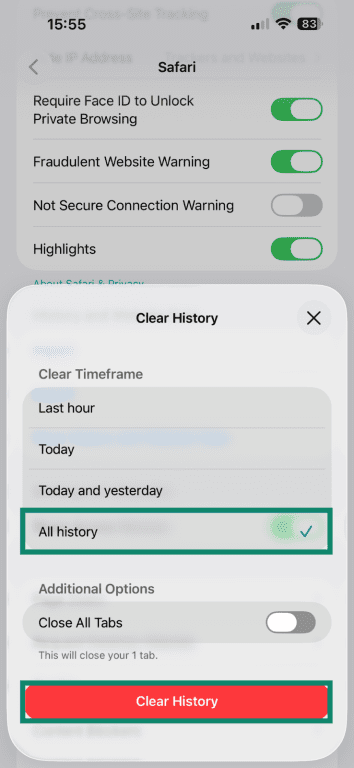
This action signs you out of websites and resets browser behavior. However, if Safari won’t close because the scam page locks the tab, you need to force-quit it: swipe up from the bottom to open the App Switch, then swipe Safari away.
Delete suspicious apps
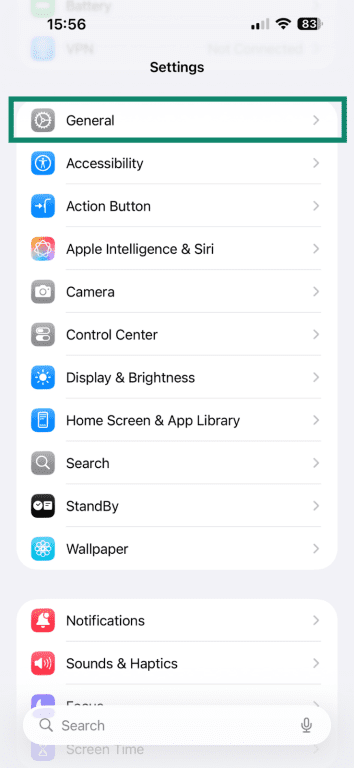
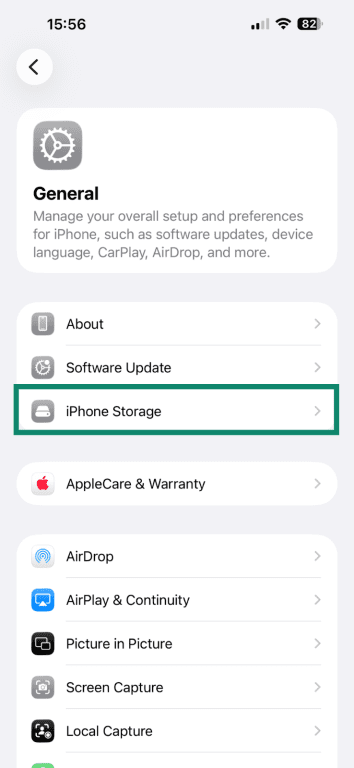
If fake Apple security alerts keep appearing even after clearing Safari data, the source may be a fake app that opens shady web pages or shows aggressive in-app pop-ups. To remove the app:
- Open the Settings app and tap General.
- Select iPhone Storage.
- Check your installed apps by swiping towards the bottom.
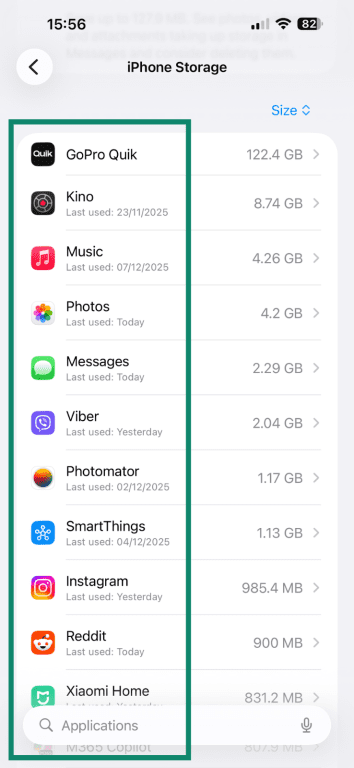
- If you see a suspicious/unknown app, tap on its name.
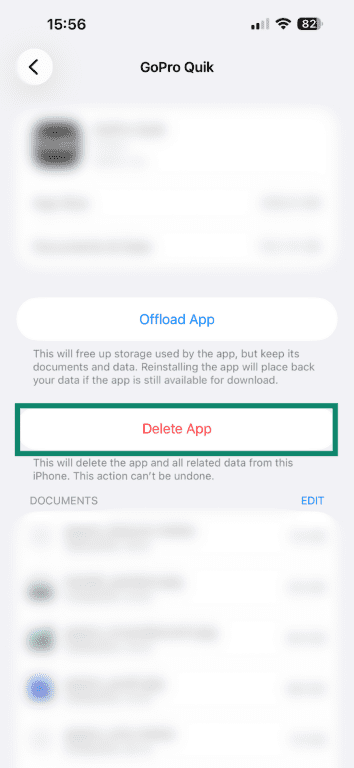
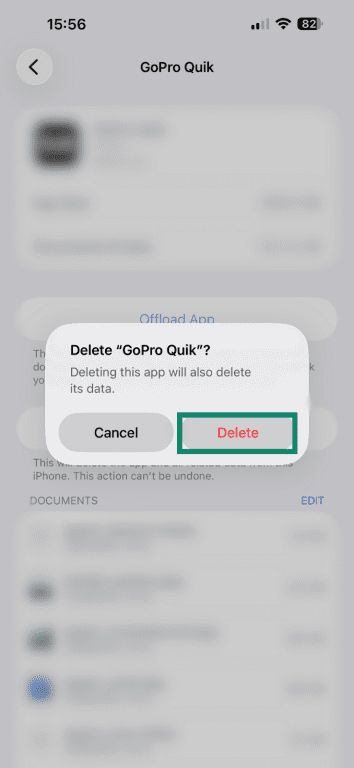
- Select Delete App and then confirm your decision by tapping Delete.
Restart your device (or force restart if needed)
If fake Apple alerts keep appearing or the device starts behaving abnormally, restart it to clear temporary browser sessions and background processes that may have gotten stuck. A simple restart won’t remove real malware or fake apps, but it can stop a one-off script or pop-up loop that remains active after your closed Safari. Here’s how to restart your iPhone or iPad:
- Open the Settings app and select General.
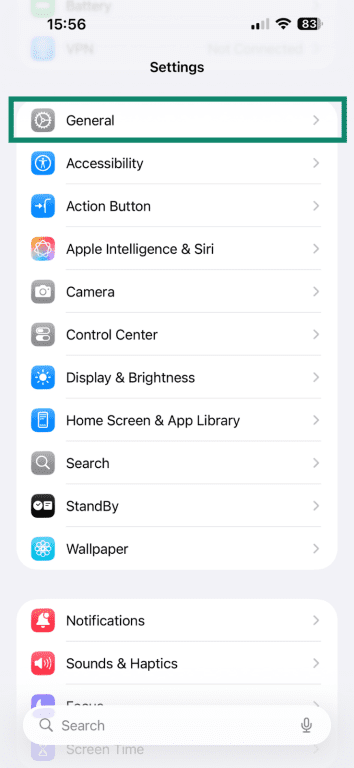
- Scroll to the bottom and tap Shut Down.
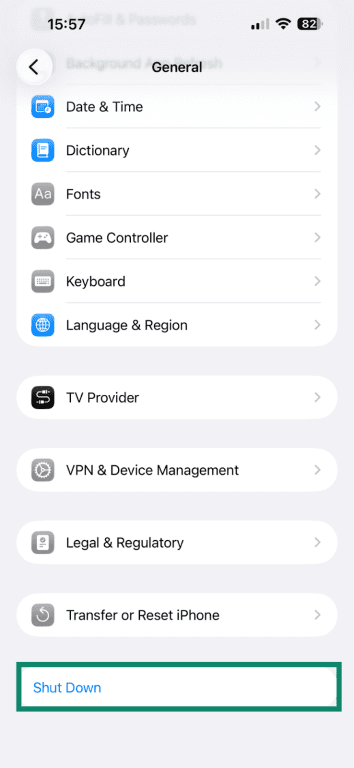
- Drag your finger across the slide to power off prompt.
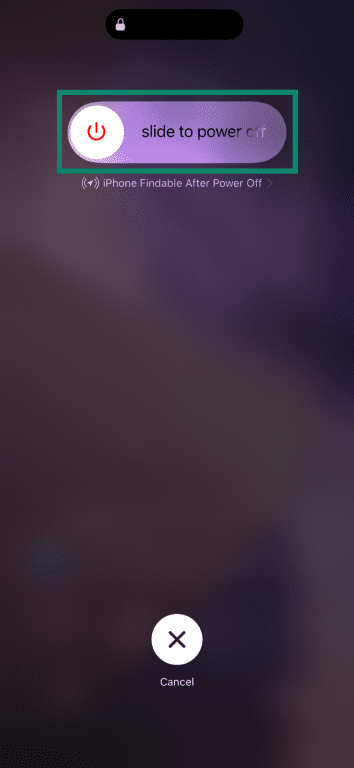
- To power your device back on, hold the side button for a couple of seconds. The Apple logo should appear on the screen after a few seconds.
If your iPhone isn’t responding, you can force it to restart in the following way:
- Press and quickly release the volume up button.
- Press and quickly release the volume down button.
- Press and hold the side button.
- When the Apple logo appears on the screen, release the side button.
What happens if you ignore the scam?
If you close a fake Apple security alert and don’t click links, call numbers, or enter any details, the alert itself does not change anything on your device. You only move into real risk when the Apple security alert scam convinces you to install software, share passwords, or pay for help. In practice, most serious cases start when someone treats the alert as genuine and follows the proposed “fix.” In that case you may face:
- Malware infections: If you download a fake or malicious app by following the instructions of a fake Apple security, you may end up getting adware, spyware, or configuration profiles that change system behavior without you even noticing.
- Apple ID or iCloud account hijacking: Sharing your Apple credentials can give attackers access to your iCloud backups, messages, stored files, and account settings. In some cases, they can also lock the device using Apple’s legitimate Find My features.
- Financial loss from phishing: Providing credit card information or authorizing a payment for what claims to be an instant “virus” fix can expose you to unauthorized charges, subscription traps, or theft of stored financial details.
- Identity theft and credential leaks: If you enter personal details, like your full name and email address, into a fake Apple security form, scammers can use that information for fraud. They may resell it, use it to launch more targeted scams against you, or attempt to break into your accounts.
How to protect yourself from future scams
You can avoid Apple security scam alerts and related digital threats with a mix of software updates, safer browsing settings, and avoiding untrusted downloads. The steps below help limit exposure to malicious sites and lower the risk of getting Apple phishing emails and scareware attempts.
Keep your iOS and macOS updated
One of the most effective ways to reduce Apple security alert scam pop-ups is to keep iOS, iPadOS, macOS, and your browsers fully up to date. Security updates often close the vulnerabilities and loopholes that scam pages rely on.
How to check for system updates on Apple devices
Checking for system updates ensures your iPhone, iPad, or Mac has the latest protections before you encounter a fake Apple security alert in the browser or in a message.
iOS and IPadOS
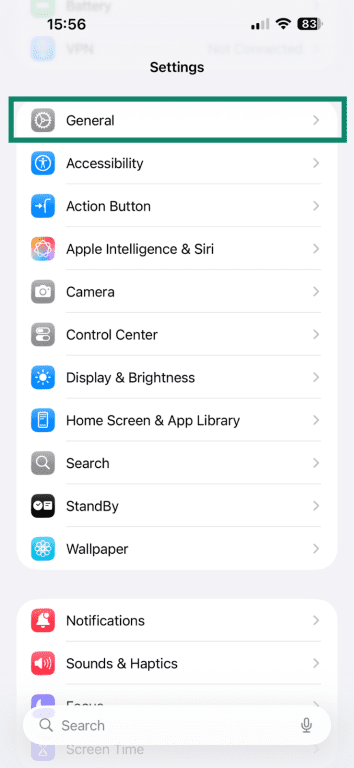
- Go to Settings and tap General.
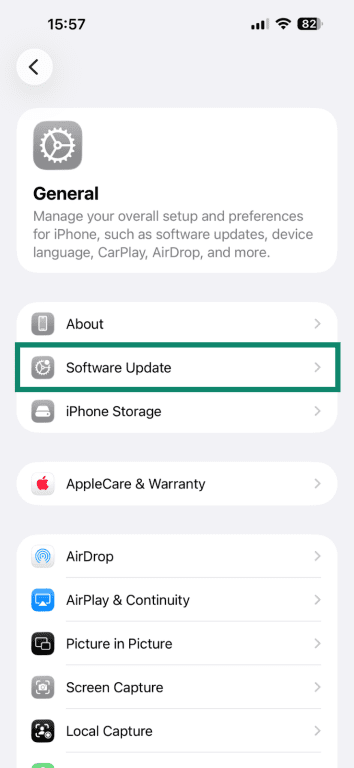
- Tap on Software Update.
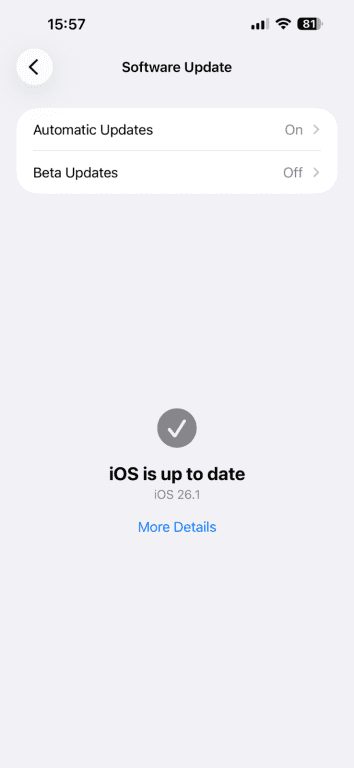
- After a few seconds, a prompt to update will show up if there’s a new update. If you’re already up-to-date, you’ll see a confirmation.
macOS
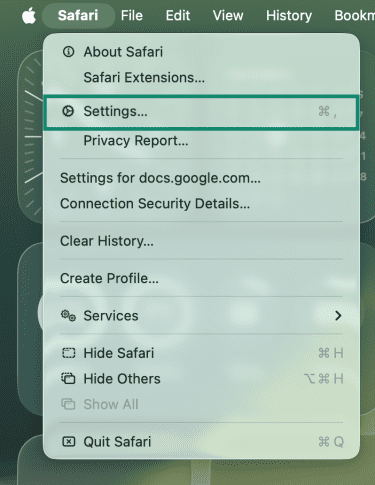
- Click the Apple logo in the top-left corner of your pick and pick System Settings.
- Select General using the left-placed sidebar.
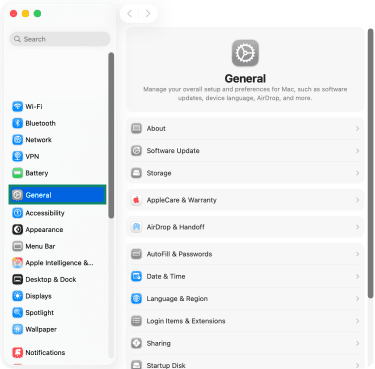
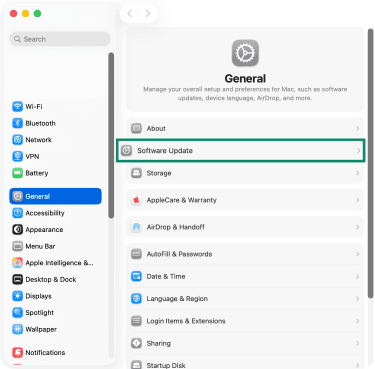
- On the left, click on Software Update.
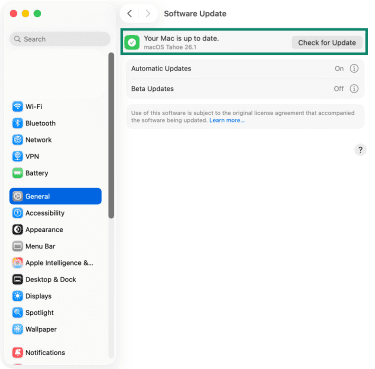
- If there’s an update available, you’ll see a prompt to install it. Otherwise, you'll see a message saying that your Mac is up to date.
Enable pop-up and tracker blocking in Safari
Safari’s built-in pop-up and tracker blocking helps cut down on the misleading ads, redirects, and background scripts that often lead to fake Apple security alerts. By stopping those trackers from loading, Safari reduces the chances of being steered toward scam pages in the first place. Here’s how you can enable those features:
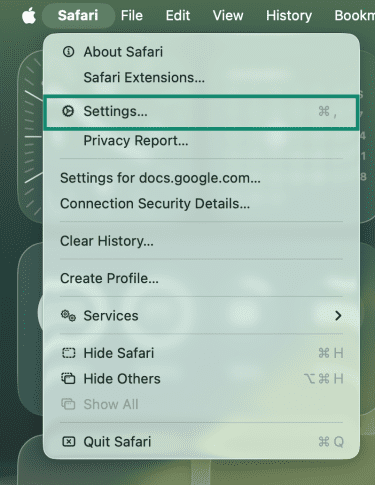
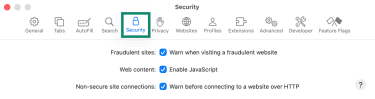
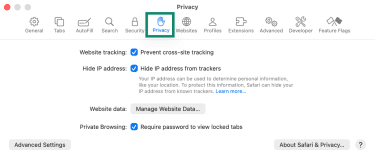
- Launch Safari, then go to Safari > Settings (top-left corner of your screen).
- Pick the Security tab and tick the box next to Warn when visiting a fraudulent website.
- Select the Privacy tab and enable the following options: Prevent cross-site tracking and Hide IP address from trackers.
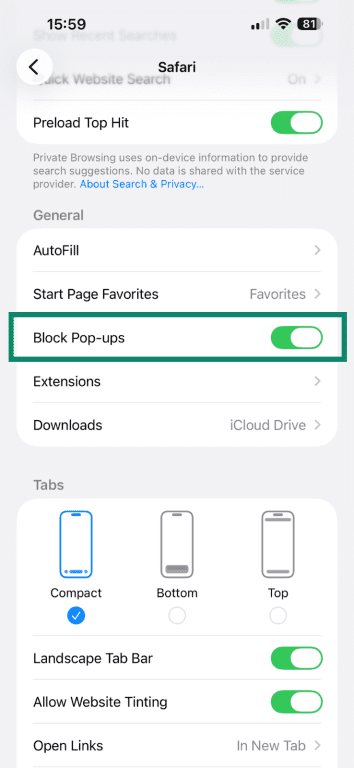
On iOS, Safari also blocks pop-ups by default, but you’ll want to make sure that this feature is enabled on your iPhone. Here’s how to do that:
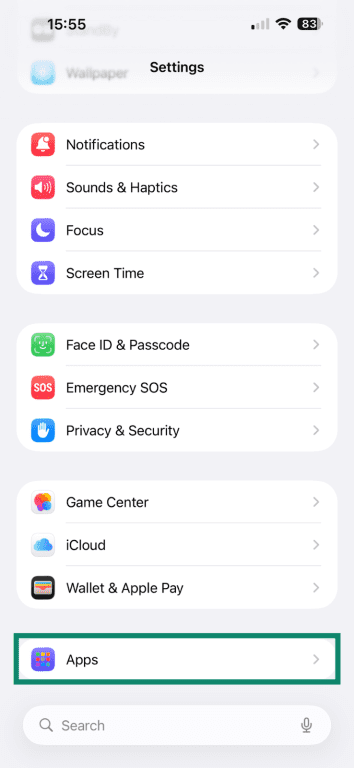
- Go to Settings and pick Apps at the bottom of the screen.
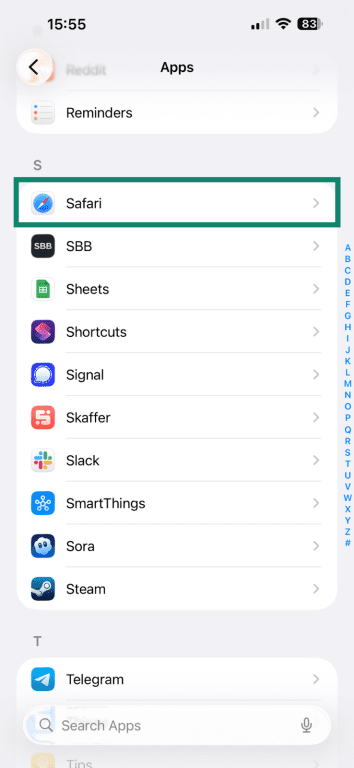
- Find Safari and tap on the app’s name.
- Scroll down to General and look up Block Pop-ups. This option should be enabled on the left (its switch should be green instead of gray).
Use a trusted antivirus or anti-malware tool
On a Mac, an antivirus tool can help prevent you from downloading or installing apps that contain adware or other unwanted components by warning you about unsafe files and blocking risky installers. On iPhone and iPad, security apps can’t scan or block App Store downloads, but they can protect you by blocking scam websites, malicious pop-ups, and dangerous links before they lead you to a fake Apple security alert.
How to report the scam to Apple
You can report any fake Apple alerts, including emails and messages pretending to be from Apple Support, iCloud, or the App Store, by forwarding them to reportphishing@apple.com. These reports help Apple identify fraudulent senders and shut down phishing campaigns that mimic Apple communications.
When forwarding a suspicious message, Apple recommends including the full email headers and not altering the subject line or body. After sending the email, you should delete it without clicking any links or downloading attachments.
Seek additional information and help via Apple’s support page
Apple doesn’t currently let users report individual fake security alerts or specific scam pop-ups directly. Instead, the company handles scam and account issues centrally through its support site at support.apple.com.
If you’ve interacted with a suspicious alert or shared personal information, you can use the Apple Support portal to reset your Apple ID password, review Apple’s official security and phishing guidance, and follow the recommended steps for dealing with suspected account compromise or unauthorized charges.
FAQ: Common questions about Apple security alert scams
Is the Apple security alert real or a scam?
If a security warning appears inside a web browser, chances are, it’s a scam. Apple doesn’t deliver alerts through pop-ups or websites. Genuine Apple notifications only appear in system settings or official Apple apps.
How do I remove the Apple security alert pop-up?
Close the tab immediately, then clear your browser history and website data. Avoid any interaction with the pop-up, including tapping buttons, links, or prompts. If the alert keeps reappearing, check for suspicious browser extensions or apps and remove them.
What should I do if I clicked on a fake Apple alert?
If you entered your Apple ID on a suspicious page, change your password right away. If you downloaded an untrusted app or profile, delete it and restart your device. And if you shared personal or financial information, monitor your accounts and consider contacting your bank or card issuer.
Does Apple ever send security notifications?
Yes, Apple sends real alerts, but not through websites or pop-ups. Legitimate security notifications appear only in iOS or macOS settings or Apple’s official apps. The company also never asks its users to call a support number, pay for security fixes, or grant remote access to their devices.
How do I report a fake Apple alert?
To report a fake Apple alert, you can forward phishing emails or messages to reportphishing@apple.com. Suspicious FaceTime calls can be reported to reportfacetimefraud@apple.com. If the scam involves personal data or a login prompt, it’s best to contact Apple Support directly.
What are the warning signs of a phishing scam?
Common red flags include urgent language, threats that your device will be locked, requests for payment, login prompts on unfamiliar websites, unexpected verification messages, or pages that imitate Apple’s design without using an official Apple domain.
Will a VPN stop the Apple security scam pop-up?
No. A virtual private network (VPN) can’t block or remove a fake Apple security pop-up once it appears. It can reduce some network-level risks on unsafe Wi-Fi, but it won’t stop scam pages or alerts you open yourself, so recognizing and closing them is still essential.
Take the first step to protect yourself online. Try ExpressVPN risk-free.
Get ExpressVPN






 Support Center
  FAQ
FAQ  VPN Setup Tutorials